How to Create BKF File by Using NTBackup Software
Follow all the steps to create a BKF file on Windows 11 and 10.
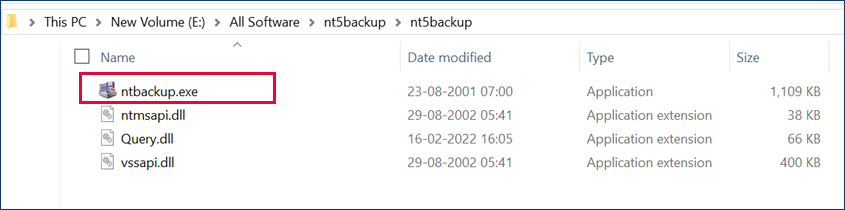
Freely download nt5backup.cab (ntbackup.exe) on Windows 11, 10, and other Windows OS, then double-click on the setup file and start the BKF file creation process.
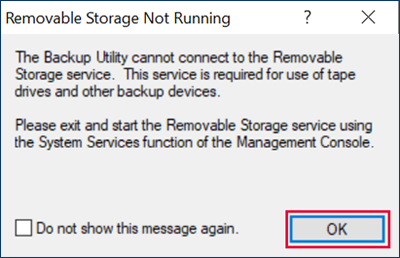
Then, click on the OK button :
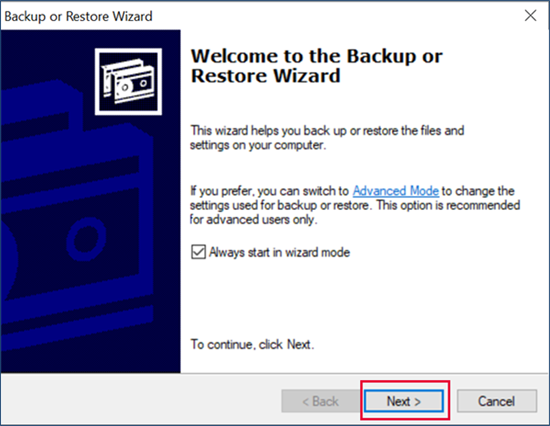
Now, the Backup or Restore Wizard screen appears in front of you to click the NEXT button.
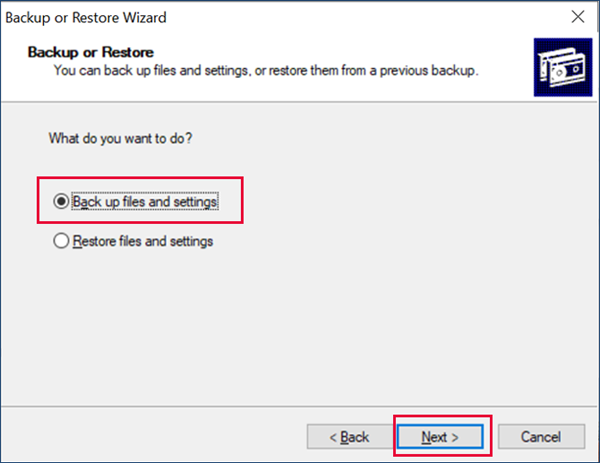
Now, you have two options: click on Back up files and settings to create a backup (bkf) file, then click NEXT.
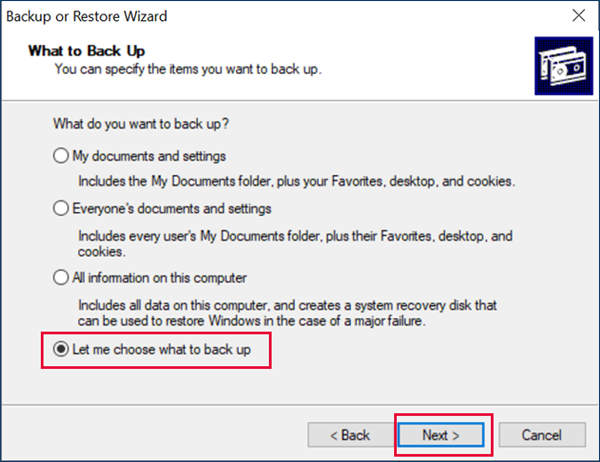
Select, Let me choose what to back up, then Next.
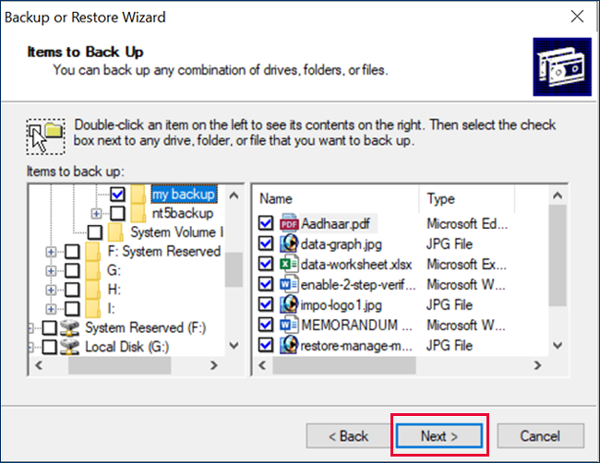
Select the folder that has files to create a backup file.
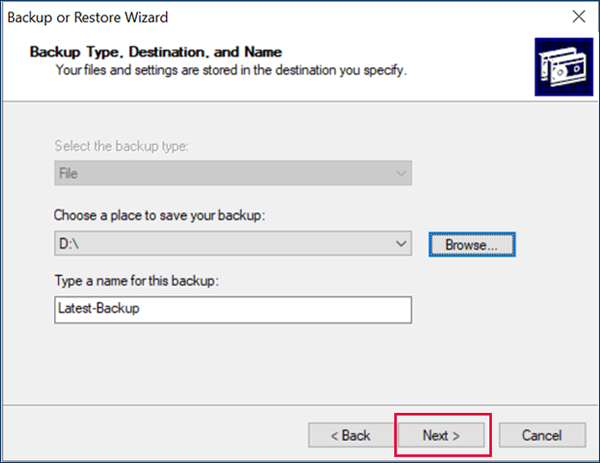
Choose a place to save your backup :
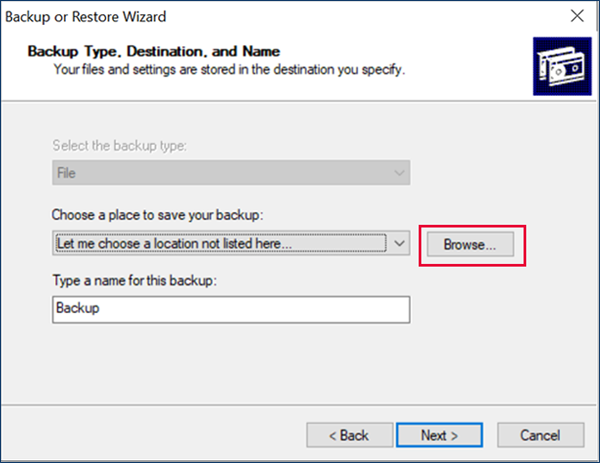
Type the file name and click the save button.
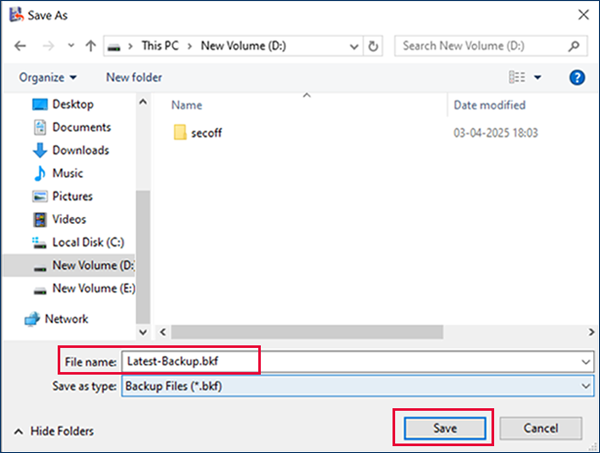
Click on NEXT.
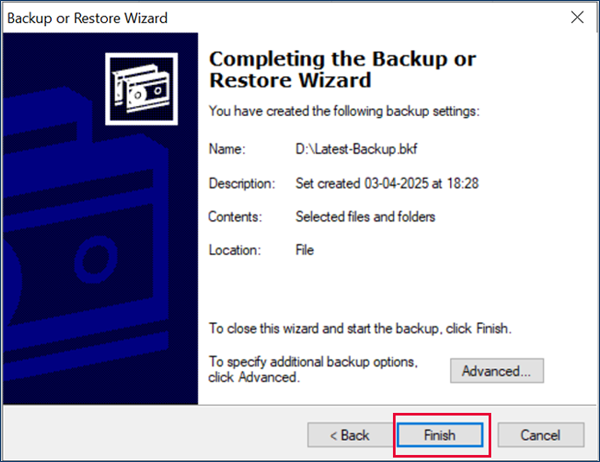
Backup file status report with name, description, contents, and location, then click on the Finish button.
The backup is complete with information such as : drive, label, and status.
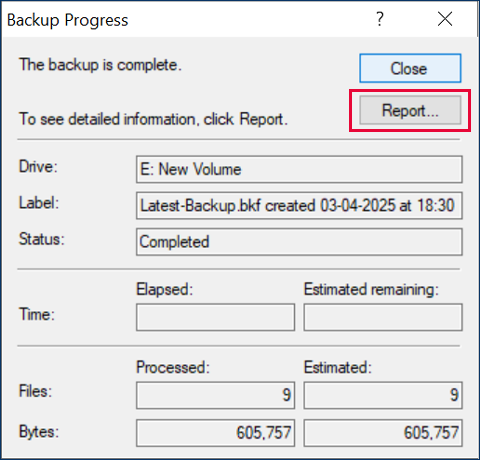
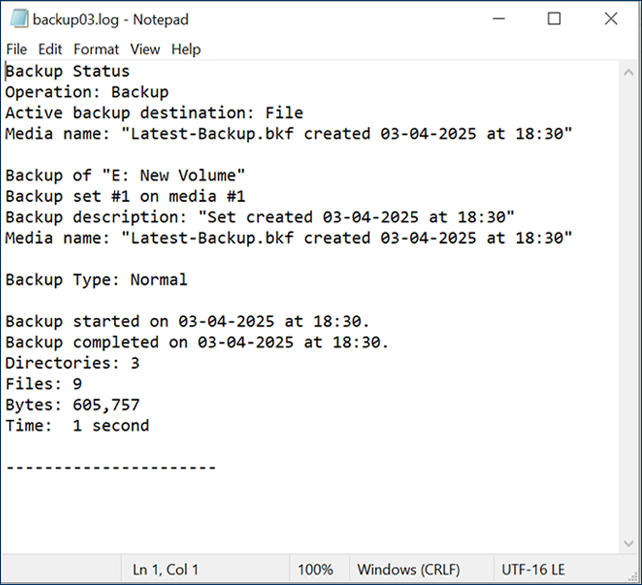
Backup Status in text file.